
Ontocron
-
Posts
76 -
Joined
-
Last visited
-
Days Won
5
Content Type
Forums
Gallery
Events
Blogs
Store
Raffles
Everything posted by Ontocron
-

MNOG II Quality of Life Modding
Ontocron replied to Sunshine is Delightful's topic in Fan Created Media
It's amazing how much difference it makes seeing the seaweed etc. animated at a reasonable speed! Great work! -
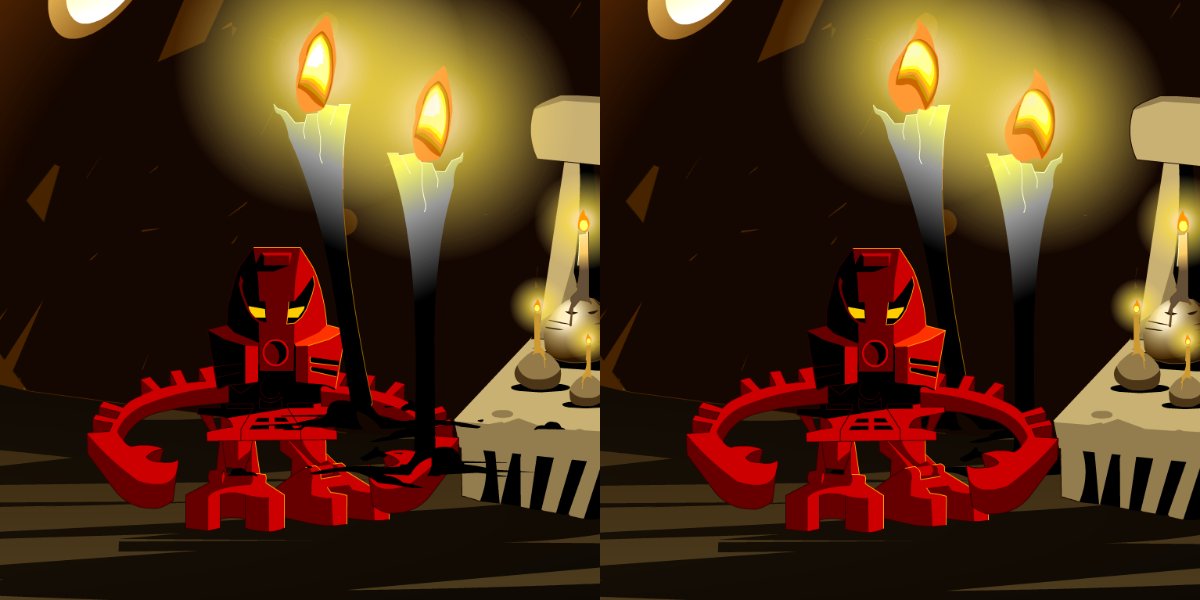
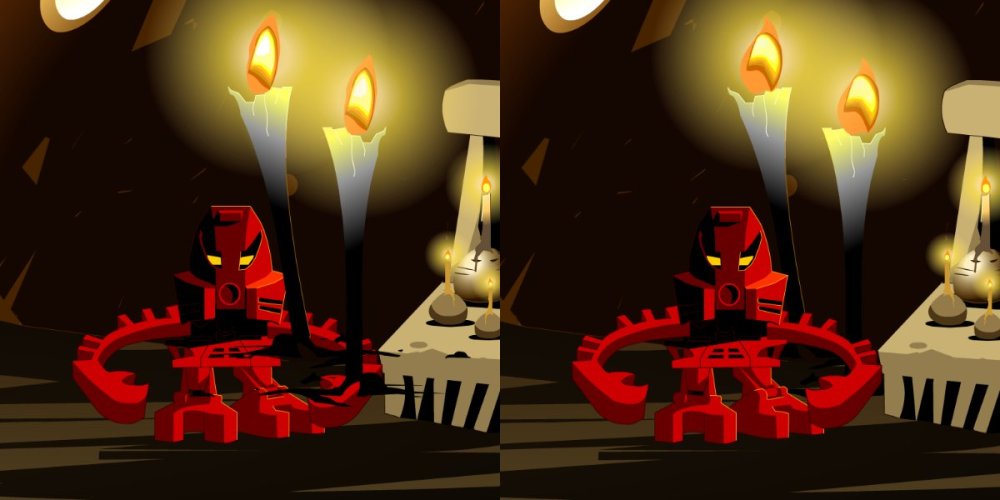
Make sure to start a new game, because currently Maku will only be set to 'Off' when the game first starts (I should probably tweak this in the future). One way to tell if the file replacement was successful is to check how many files are in the "Mata Nui Online Game" folder. The original version should have 999 files in the folder, while the modded version should now have 1064 files in the folder. Also, Maku's colors will be blue & light blue instead of just solid blue. And when you open Text_cBar_KAPURA_XXIV2_eng.txt, it should say "Fire-Matoran" in the text instead of "Fire-Tohunga". If it still hasn't worked out, you can try deleting every file in the "Mata Nui Online Game" folder (the folder with all the .swf files inside), and placing the files from this zip inside the folder. With those files, I have included all the files with the replacement already done, so that you can just copy & paste all 1064 files into the now empty "Mata Nui Online Game" folder, and it should work.
-
Once you've unzipped the downloaded files, you don't need to drag or paste the files into the .exe file. You should paste the downloaded "Mata Nui Online Game" folder into the same game folder that already contains the old "Mata Nui Online Game" folder and the original .exe file. Windows should automatically merge the new, modded "Mata Nui Online Game" folder and the old, unmodded folder, then it will ask if you want to replace the files inside the old "Mata Nui Online Game" folder with the files from the new folder. We want to replace those files. When it's done, you should have a game folder with the unmodified .exe file and a "Mata Nui Online Game" folder that has had most of its inner files replaced by my modded files. Hopefully that makes sense
-
I wish I knew as well, but I currently have no clue how to clean up audio like this. Maybe one day an upscale or full recreation will be possible! I have uploaded an update of my current progress with a number of new features such as more bugs fixes, a few dialogue-advance arrows in scenes where dialogue passed rather quickly, small immersive additions, changing 'Tohunga' to 'Matoran', and converted various scenes to make use of the localization system that previously did not. Making translations should be much easier now thanks to the conversion: Take every .txt file that starts with "Text_", edit the dialogue inside, then save it with the "eng" part of the file name replaced with the first 3 letters of your language. I also added a set of secret dialogues to the Chronicler's Company. The full list of all mod changes can be viewed here. Let me know if you would like to submit a translation.
-
Matoran/Matoric Script Revision
Ontocron replied to Likonan's topic in Bionicle Storyline & Theories
I love this. Seems logical and looks like it would fit right into the universe. Very cool! -
Thanks all! Interesting, I never noticed you could do that! That is carried over from the original, for some reason they copied Onewa's item-giving code into Huki. Maybe at one time they planned to give Huki some interaction with the Koli ball? However, it shouldn't prevent Onewa from receiving the ball. Next update I'll disable that extra code.
-
Yeah, the new update is online. I'm very sorry about the radio silence; I had planned on going back to look at the sand jpgs, but I wanted to prioritize the bugfixes and consistency edits, and I kind of ran out of time. Your edits are good, but I feel like there might need to be another pass on a couple that have slightly blurry sections, like 1.3-E.swf. In the past couple weeks I also started experimenting with bigjpg.com as well as zyro to see what's possible. I hope to get a new update out with nicer sand images and more unique Matoran appearances eventually.
-
Ok, I was able to reproduce the problem you described. It seems that for some reason Taipu's state isn't being saved until after you collect the Flute. So, if you close the game between entering Le-Wahi and getting the flute, Taipu will be reset to partymode in certain scenes upon relaunching. I changed it so Taipu's state will start being saved as soon as you enter Le-Wahi, so in the next mod update hopefully that issue won't happen anymore.
-
It seems there are a couple scene transitions that forgot to allow scrolling. I can fix that easily enough. The lone matoran silhouette is Taipu, and you're right, he shouldn't be there. Both these problems are related to Taipu's status variable. I suspect that he is being reset on the game startup. Did you close out of the game at any point during the Le-Koro chapter? Thanks for the feedback!
-
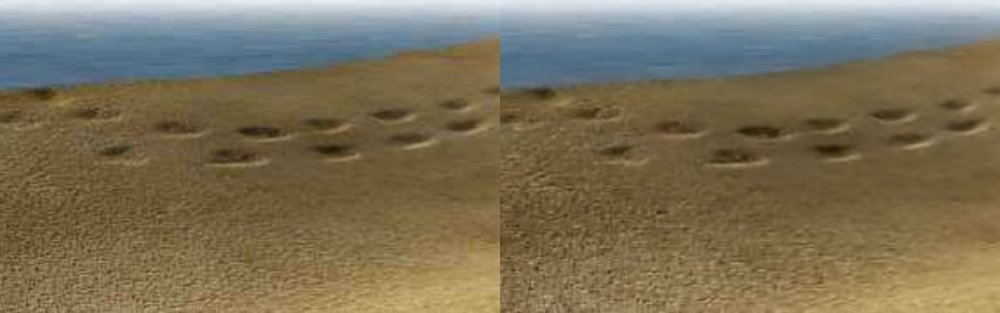
Wow, that's an impressive result! The 7zip file is "Unavailable", but it's clearly a big improvement. It even looks like it could have been the original, uncompressed image; great work! This could help out the sandy beach textures the most, since there's only so much Photoshop could do with such a noisy image.
-
Thanks, glad you like it! I don't really want to stop Maglya from spawning, because I figure the player might not wait for him to walk into view after the first visit to Ta-Koro. You're right, though, it is awkward. I think it would make sense for him to simply refrain from giving you the surfboard until after you have the backpack. In fact, that'll probably be included in the next update. For now, here's an updated swf file for that scene that you can drop into your Mata Nui Online Game folder.
-
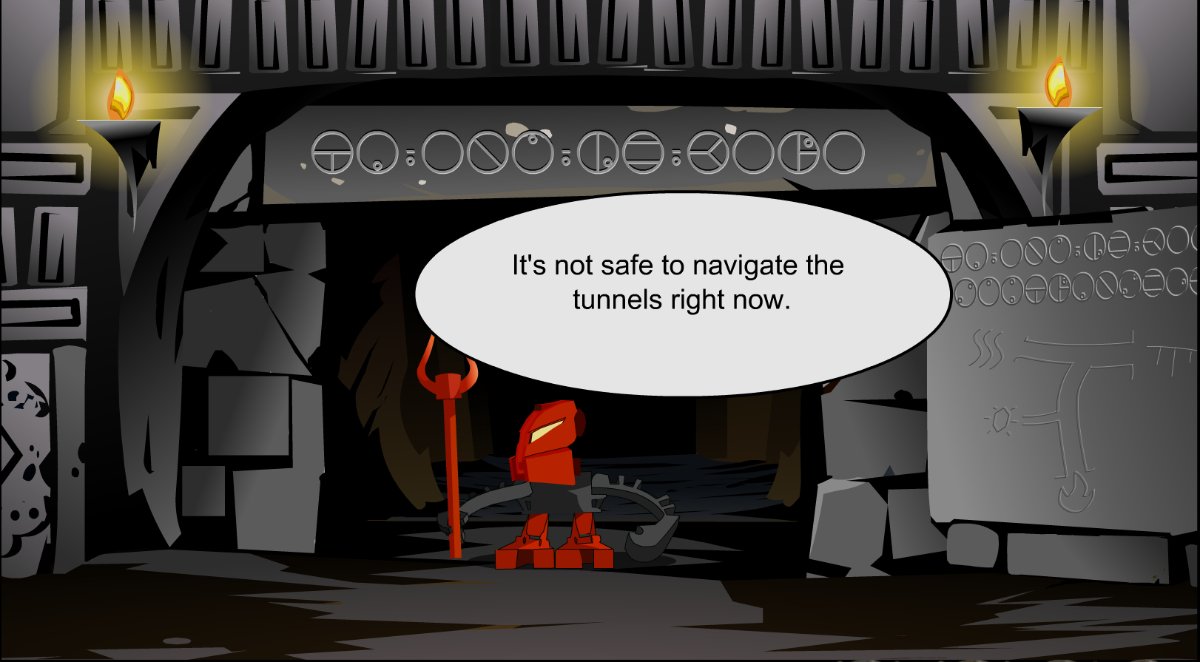
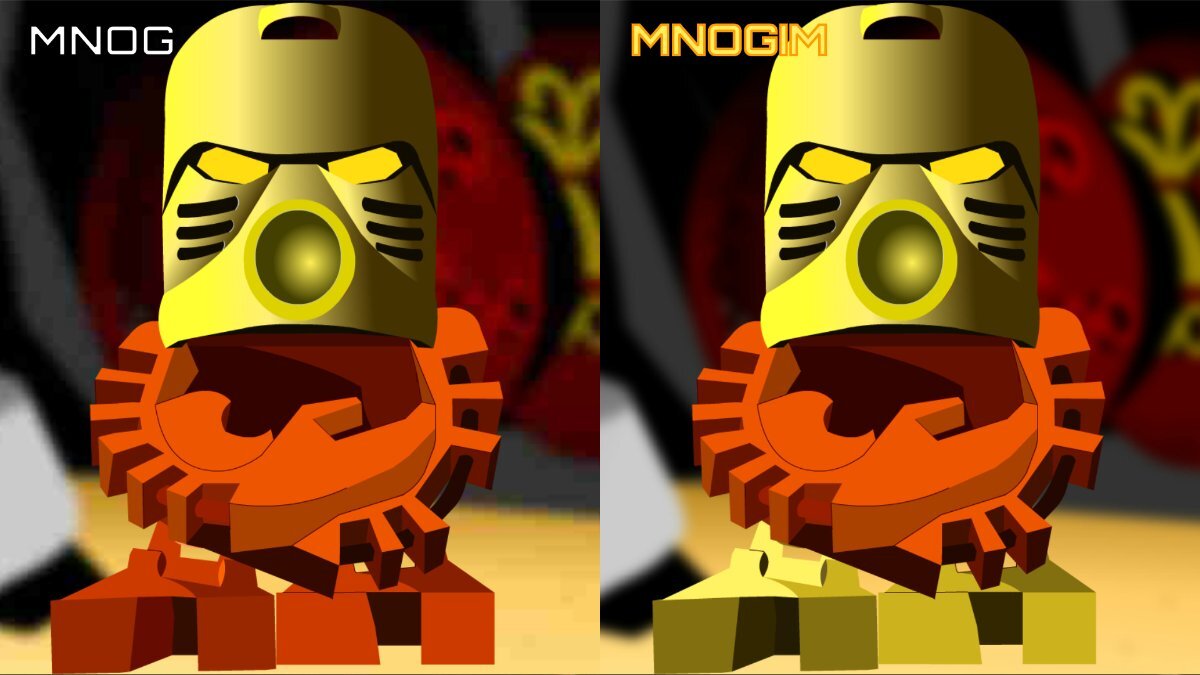
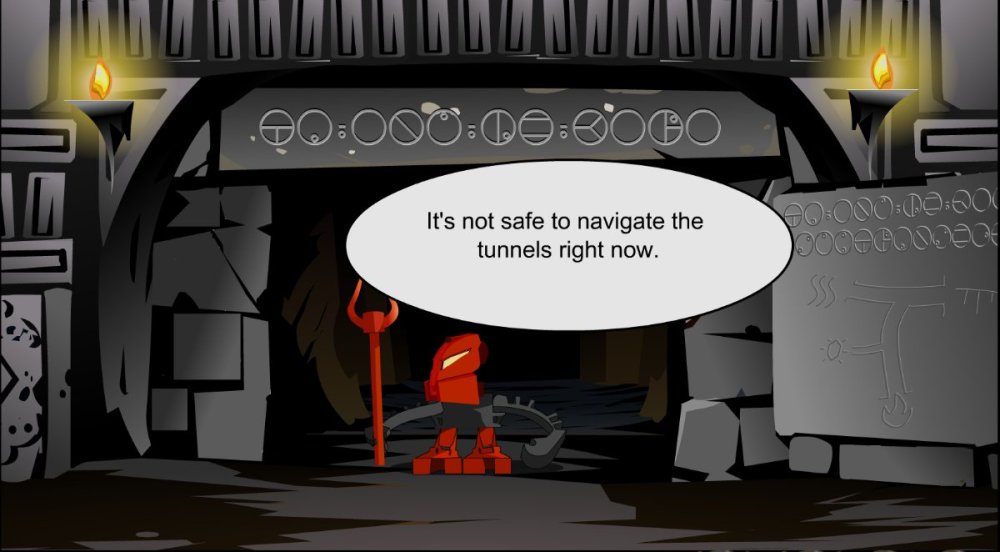
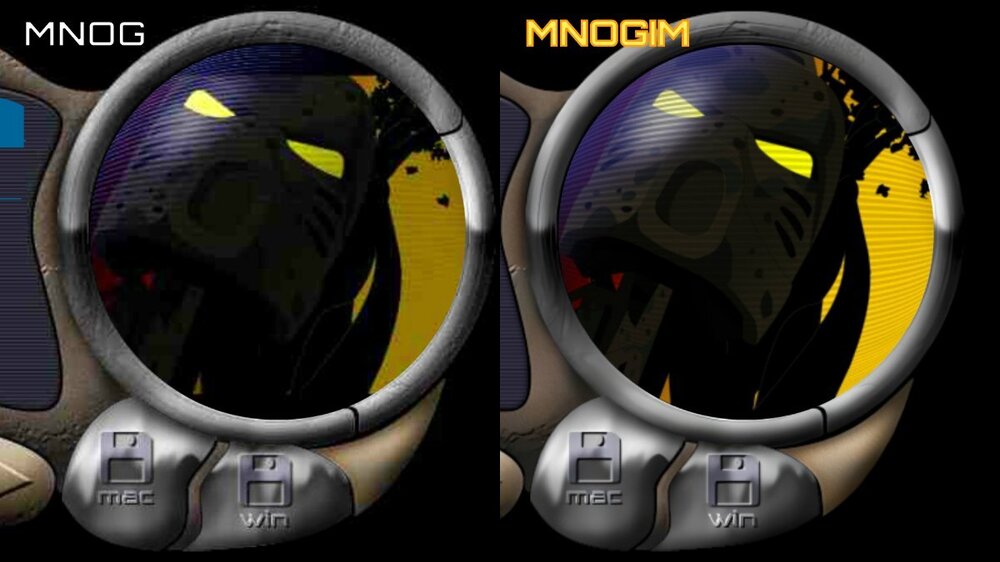
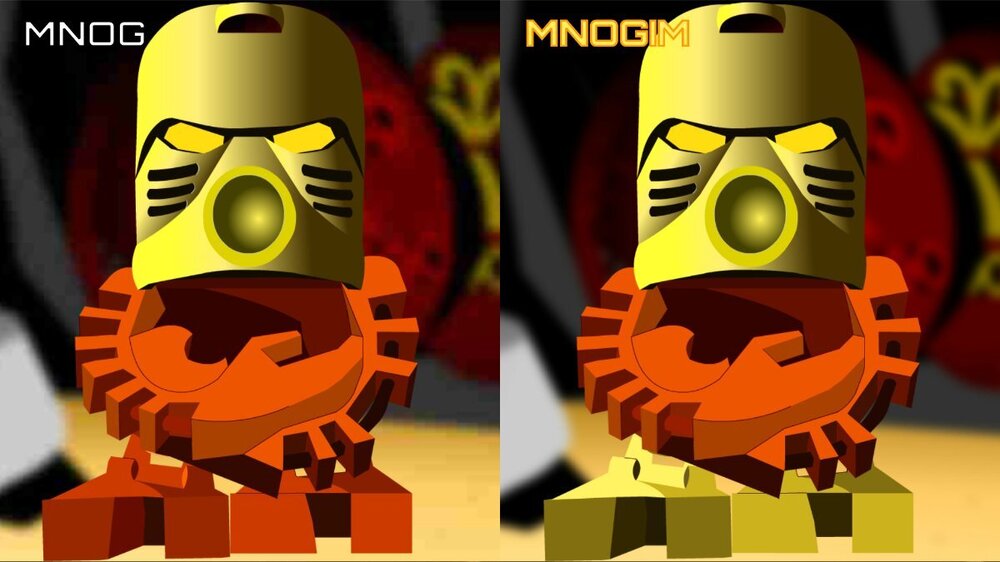
Mata Nui Online Game Improvement Mod or MNOGIM MNOG is a well-made flash game that, thanks to its use of vector graphics, still looks great even two decades later. However, it does suffer from a few bugs, as well as from the compression once needed to send the non-vector graphics over dial-up internet. My goal with this project is to improve the experience of playing MNOG to be the best it can be. Those at the BioMedia Project have provided versions of MNOG on their website that play at the appropriate 18 fps and save your progress as you play. I have used their original 2001 auto-saving version as a base. High-Quality JPEG Replacement MNOG makes use of many highly-compressed JPEG images. I have re-created nearly every image at the same resolution, but much higher quality. A few images didn’t have an obvious method for re-creation, such as the Ta-Wahi beach sand, so instead I either upscaled with various methods or cleaned up the jpeg artifacts to the best of my ability. Bug Fixes I have fixed a few bugs in the game, such as Maku teleporting to Po-Wahi, incorrectly overlapping layers, corrected typos, and converted various scenes to make use of the localization system. I also improved parts of the German translation with the help of bestshadow6585. General Changes I have made a number of changes to improve the gameplay: The Telescope wouldn’t update because it looked for 2001 dates, now it updates as you progress through the game; Maku won’t arrive on the beach until you have visited Vakama; A guard will stop you from using the Ta-Onu Highway until after Ga-Koro; Added black bars to the sides of the screen to prevent widescreens from viewing non-playable area; Book of Chronicles can now scroll from bottom to top and vice-versa; Stopped the Ta-Koro gate from instantly slamming down in front of you when you click it; Disabled ability to cross lava when bridge is down & lowered bridge sprites; Villagers no longer tell you that Nokama has a mission for you until you have the chisel; You can now update Maku on Huki’s status; Added second chance to bring Taipu along if you chose not to; Fixed several instances of incorrect Akaku sprites; Added check so that Kapura will not be wandering the woods while also in your company. I also added a set of secret dialogues to the Chronicler's Company. Color Consistency I've modified several Matoran colors, such as changing Matoran eye colors to be consistent with how they are shown in later animations, and a few instances of incorrectly colored parts. Clone Replacement I've changed the appearance of several otherwise identical Matoran to be a little more unique. Eventually I plan for almost all Matoran to have their own unique colors/appearance. 'Tohunga' to 'Matoran' Swap Swaps the term 'Tohunga' to 'Matoran' in all cases. Full list of All-In-One changes can be found here. How To Install You’ll first need to install MNOG (Original 2001 Version) from BioMedia Project. You can download the mod as an All-In-One or you can grab separate sections. Install these separate sections in this order as desired: Bug Fixes High-Quality JPEG Replacement General Changes + High-Quality JPEG Replacement Color Consistency + General Changes + High-Quality JPEG Replacement Clone Replacement + Color Consistency + General Changes + High-Quality JPEG Replacement Tohunga-Matoran Swap For the All-In-One: Unzip 'MNOGIM All In One.zip' and copy the ‘Mata Nui Online Game’ folder to the same folder that holds your ‘Mata Nui Online Game.exe’ file. Overwrite all files it asks to overwrite. You are now ready to go. For Bug Fixes: Unzip the .zip file and copy the ‘Mata Nui Online Game’ folder to the same folder that holds you ‘Mata Nui Online Game.exe’ file. Overwrite all files it asks to overwrite. For High-Quality JPEG Replacement: Same as for Bug Fixes. For General Changes + High-Quality JPEG Replacement: Install High-Quality JPEG Replacement and then General Changes the same way as Bug Fixes. For Color Consistency + General Changes + High-Quality JPEG Replacement: Install High-Quality JPEG Replacement and then General Changes and then Color Consistency the same way as Bug Fixes. For Clone Replacement + Color Consistency + General Changes + High-Quality JPEG Replacement: Install High-Quality JPEG Replacement and then General Changes and then Color Consistency and then Clone Replacement the same way as Bug Fixes. For Tohunga-Matoran Swap: Install Tohunga-Matoran Swap the same way as Bug Fixes after you've installed all the previous sections you want. I personally recommend playing the game with the 18 FPS option for the intended experience.


- 29 replies
-
- 19
-

-

-
I'll send you a message.
-
Thanks! Thanks for kind words! I'd say it probably took around 6 hours all together.
-
Yeah, that sample library must have been really popular in early 2000's media. I can think of several Playstation 1 games that also use this track. I believe it was discovered that Justin Luchter (MNOG composer) sampled Sound Ideas - Symphonic Adventures Production Elements Toolkit for a few tracks.
-
Thank you! Glad you like it. Here's a behind-the-scenes pseudo-timelapse of the photo manipulation process. It's not every step, but hopefully it's interesting: https://www.youtube.com/watch?v=eFQQG_e3Jgw
-
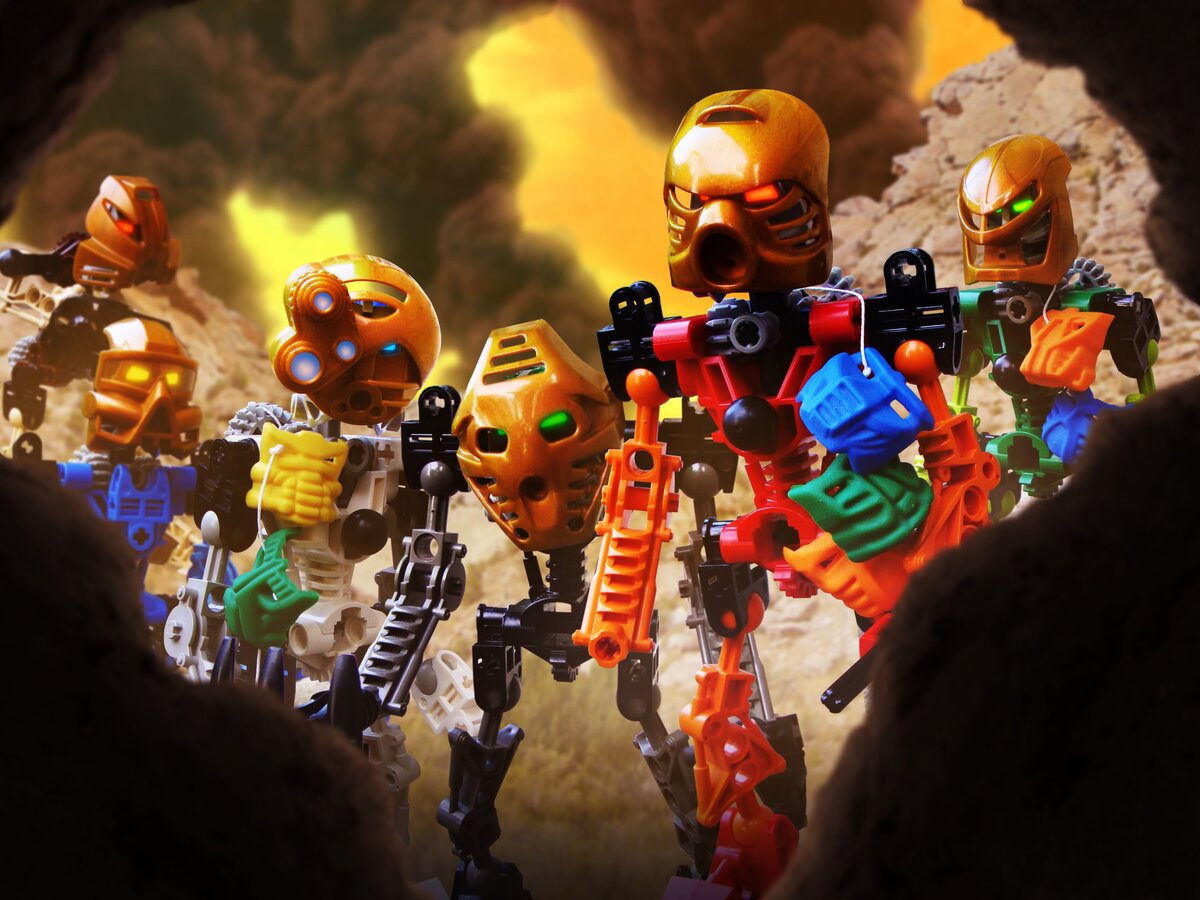
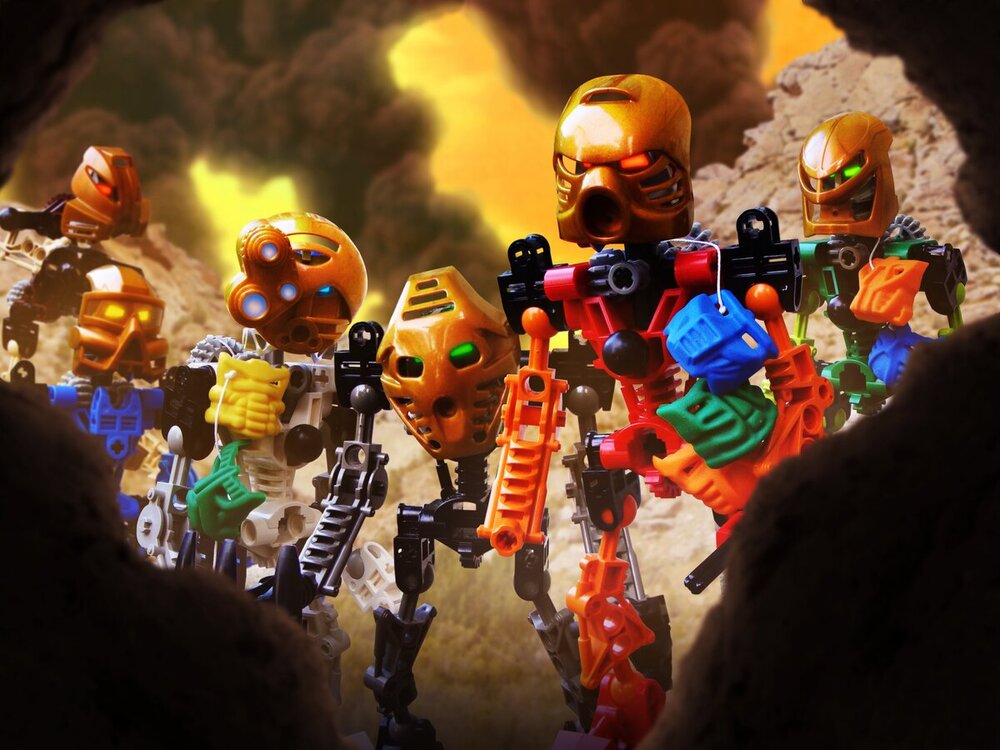
"The Toa will brave any danger to save Mata Nui and its people...and even dare to journey to the very heart of the swarm." I recently put together a recreation of this panel from the 2002 McDonald's comic: High Resolution Behind-the-scenes timelapse
-
Thanks for the feedback! I think I would like to do a few more covers from the 2001-2003 series.
-
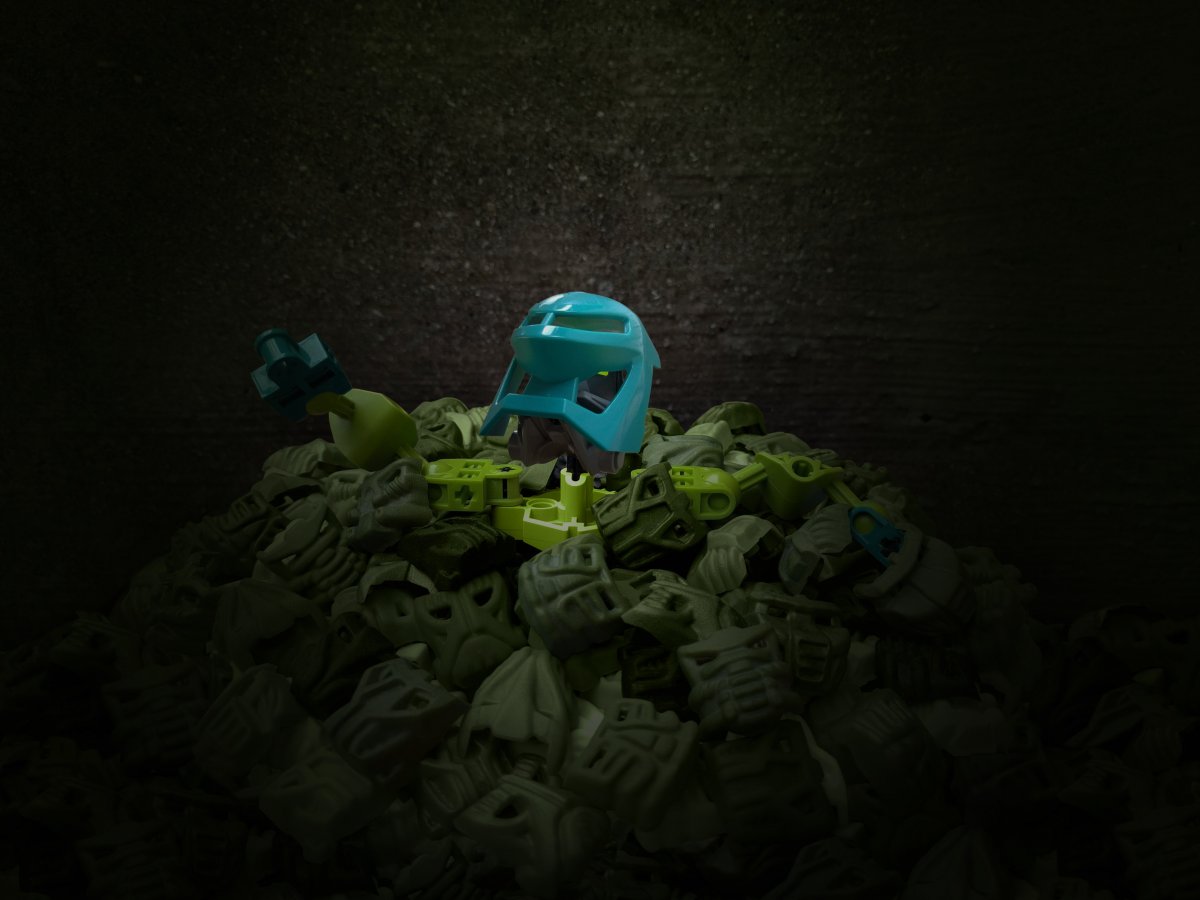
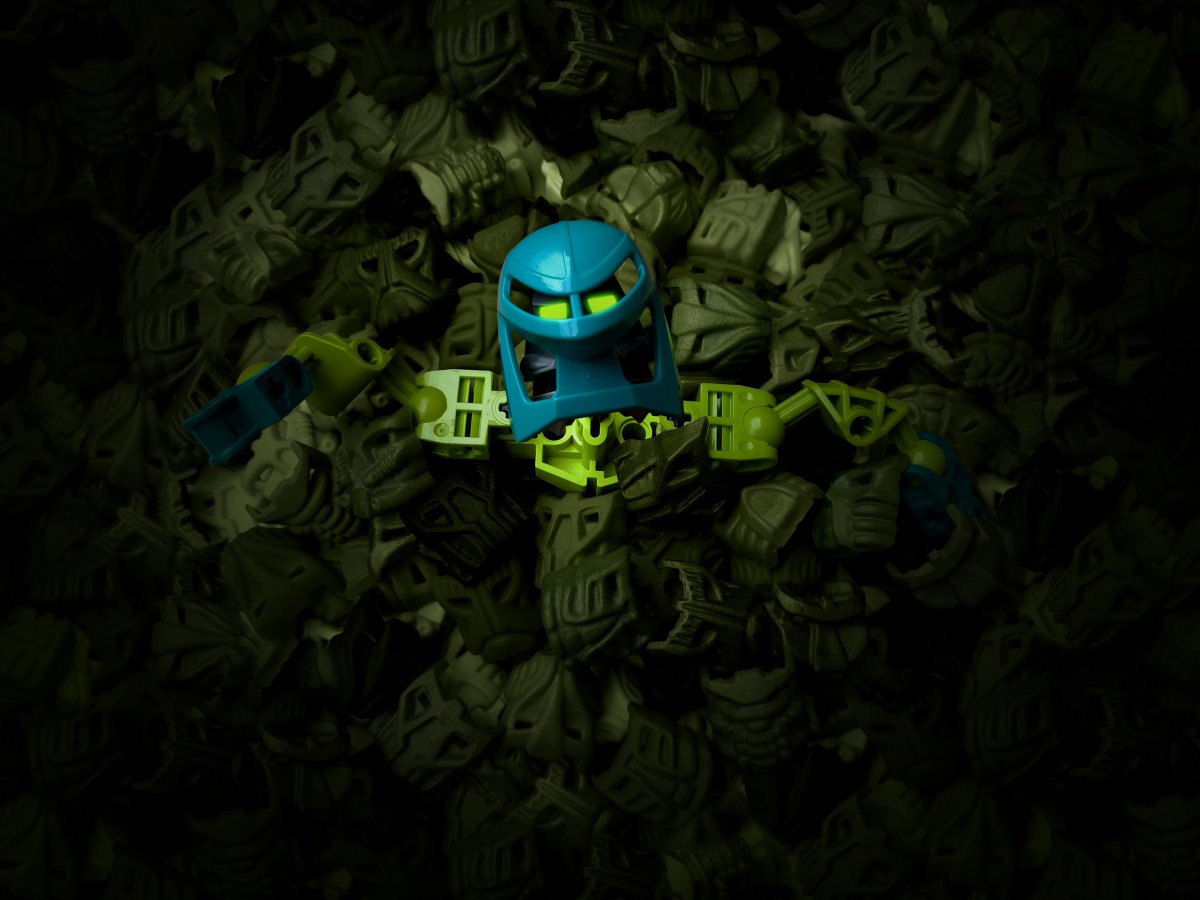
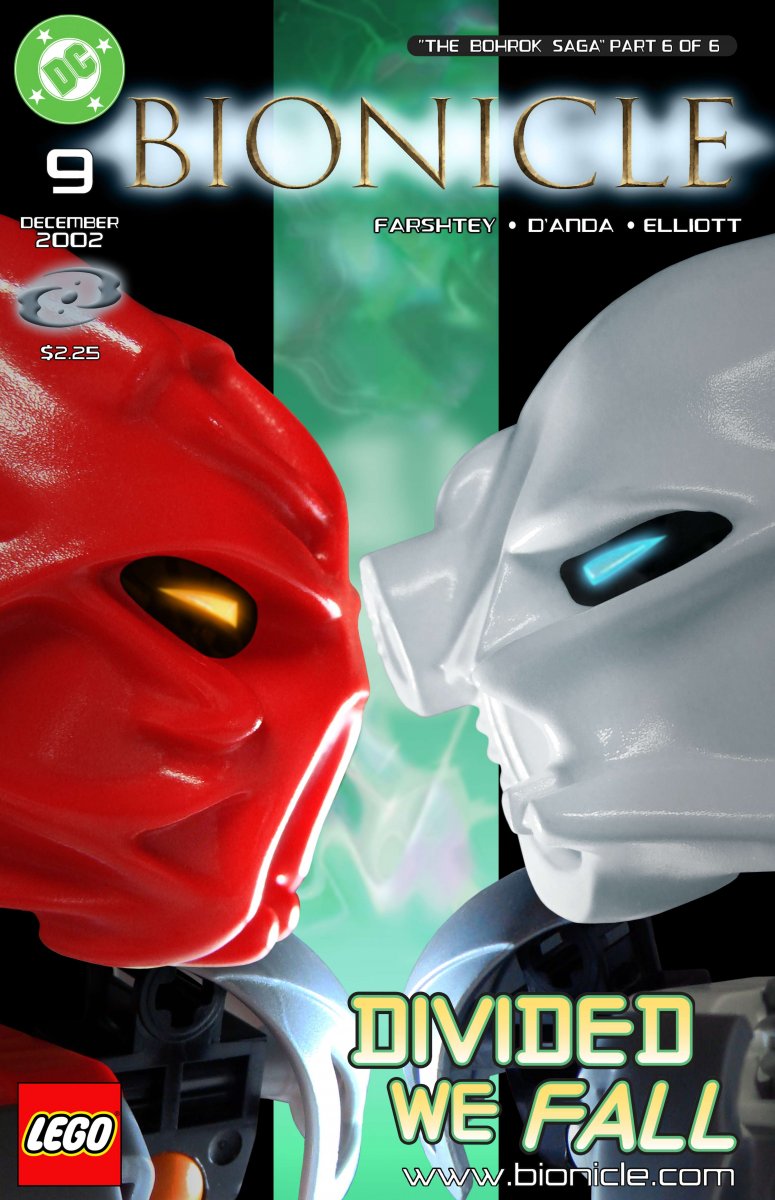
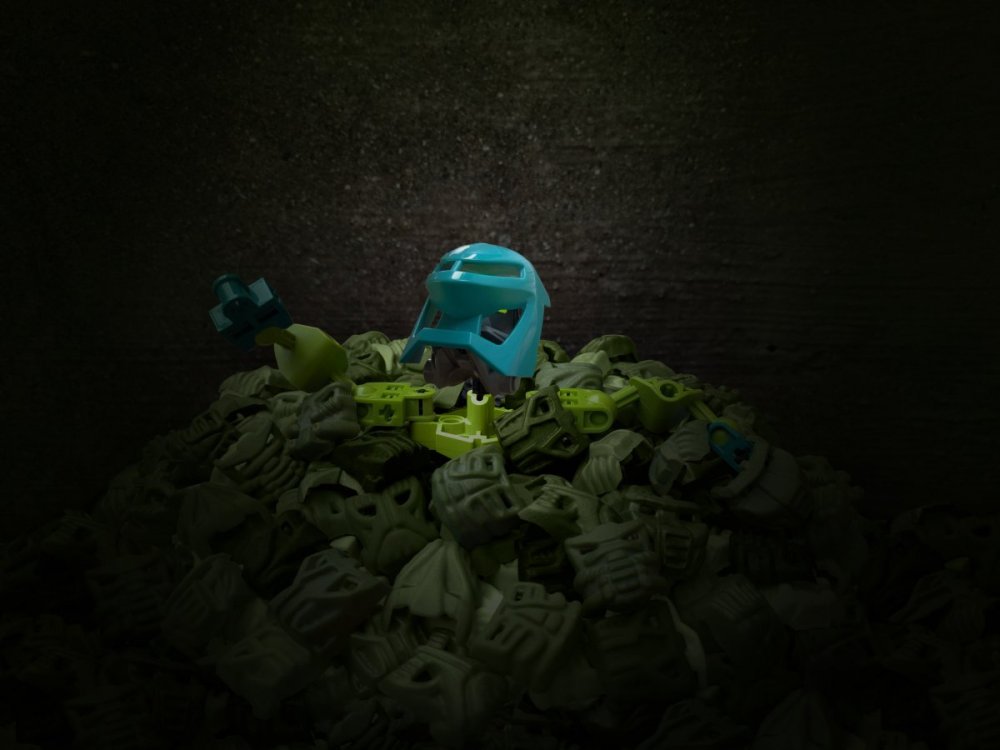
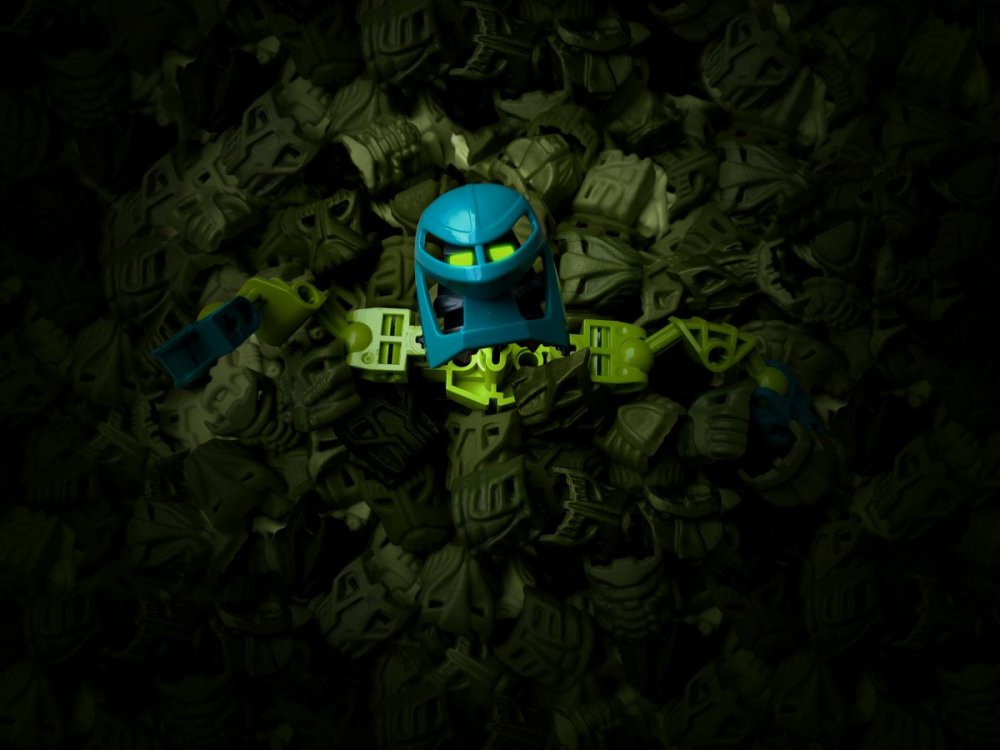
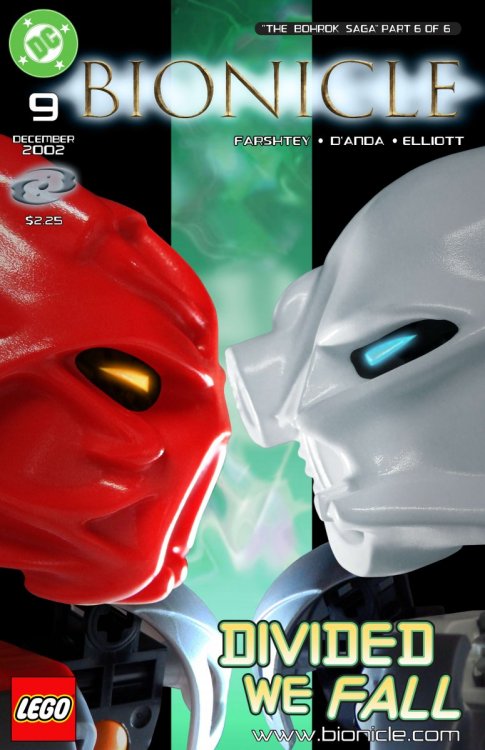
Here are a couple photo manipulations I've done in the time since my last post here: Kongu's Nightmare Divided We Fall A recreation of this comic cover. -- Without any text
-
These are all really awesome! The photography is exceptional, and every shot is interesting. You did a great job on the effects too, from the obvious dissolving effect to even the more subtle sword and eye glow effects. Really well done. I really like the composition in Nokama and the Bordahk, but my favorite has to be the Jaller shot. That is quite a beautiful environment.
-
I just built out a Mac version and added it to the original post! I don't have any Mac computers to test it on, but in theory it should work the same.
-
Hectic Hoi: The Game Download link: https://www.dropbox.com/s/mxjdjkgki636fww/HecticGame.zip?dl=0 Download for Mac: https://www.dropbox.com/s/k9fbjrd54ddb0iv/HecticMac.app.zip?dl=0 I came up with a silly idea for a small multiplayer game to try out the Unity 3D game engine. After many hours of network coding and head-scratching, it mostly works! You play as a Bionicle shore turtle trying to eat the most bula berries. Watch out, because other players can run into you and knock you both in opposite directions! There is a power-up you can grab that provides a little bit of protection. You can join a multiplayer match online over the Unity-provided server, or you can play over a Local Area Network. Instructions are at the bottom of this post. As my first game (and as a multiplayer game), it is a bit glitchy, but I hope you can enjoy it for what it is, and have fun! Here are a few images: Known issues: Players can desychronize when moving too fast or an internet connection is slow, leading to different final tallies for players. Players cannot join a game already in session. Players listed as still in match even after they left. Players that idle in a match lobby get kicked after a few minutes. High scores might occasionally be recorded as one less than they should be. If running on an older machine, the start screen might show only a blank, blue screen? If you run into problems with being unable to rejoin or completely leave a lobby, just start a new match. INSTRUCTIONS: INSTALL ------------------- Extract both HecticHoi.exe and the HecticHoi_Data folder from the zip archive to a new folder. TO PLAY ------------------- 1. Open HecticHoi.exe 2. Check 'Windowed' on the Config popup to switch between Fullscreen and Windowed mode as desired. Set the resolution and graphics quality to desired setting and click 'Play'! NOTE: If prompted by your antivirus to give permission to bypass firewall, don't bother. It should probably work regardless. 3. You can either play online on the Unity-provided server, or offline on a Local Area Network. Click Online Play or Offline Play to show your options. To host an online game server: Enter a match name in the text box under 'Host a Game' and click the 'Create' button. To join an online game: Click the 'List Servers' button. Find a server you want to join on the list, and click 'Join'. If you see "No Servers Found", try clicking 'Next' to refresh the list, or host your own. To host an offline game server: Click 'Play and Host'. To join an offline game over LAN: In the text box under 'Join a Game', enter the IP Address of the computer which is hosting a game and click 'Join'. 4. On the Lobby screen, your character will be highlighted grey on the list. Click the box under 'Color' to choose a color for your character. Click the text box under 'Player Name' and enter a name for your character. Click 'Join' when ready to start the game. Once every player in the room is marked as 'Ready', the game will begin. At any point in this process you can click 'Back' at the top of the screen to go to the previous screen. 5. Use the arrow keys or the WASD keys to move your turtle around. Walk over a red berry to eat it, and walk into the floating mask to put it on. Running into another turtle will cause you both to bounce back. Wearing the mask will give you limited ability to repel other turtles for a short time. Eat as many bula berries as you can! To change your name in-game, click the text box at the bottom left of the screen, enter a new name, and click 'Change'. To turn off the music, click the square button at the bottom right of the screen. Once all the berries are eaten, the final tally screen will appear. You can clear your high score by clicking the 'Clear High Score' on the main menu screen. TO QUIT -------------------- Click red 'X' button at top right of the screen to quit the application. If in-game: Press the ESC key to bring up the green header and either click the red 'X' button to quit the application or the 'Back' button to go back to the lobby screen.
- 6 replies
-
- 3
-
-
- Hectic Hoi
- game
- (and 1 more)
-
Confrontation with the Kohrak and more Photography
Ontocron replied to Ontocron's topic in General Art
Glad it helped, and good luck with the stop motion! Of course! You can check out either http://keyblade87.deviantart.com/gallery/ or https://oldboneandbogfoot.tumblr.com/tagged/oldboneandbogfoot I'll update the original post with it as well. -
Confrontation with the Kohrak and more Photography
Ontocron replied to Ontocron's topic in General Art
No volcanoes, sadly. Not that it has stopped me in the past, though: http://i.imgur.com/hhINdYB.jpg Thanks! If you have the urge to take some cool Bionicle photos, I say go for it! All you really need to have is something to take a picture of, and some practice. -
In between experimenting with 3D-printing and other artistic ventures over the past year, I have still been taking Bionicle pictures. Here's some photos/photo manipulations I have been working on, inspired by MNOLG, the GBA games, and more. Also, here's a few 'Before' shots if you want to compare and see what went into the edits. BTS Confrontation on the Ice BTS Rescue of Nokama 1, 2, and 3 My entire gallery: http://keyblade87.deviantart.com/gallery/ or https://oldboneandbogfoot.tumblr.com/tagged/oldboneandbogfoot Confrontation on the Ice High-resolution The Rescue of Turaga Nokama High-resolution Jaller Surveys the Pala Region High-resolution Meeting a Friendly Taku Bird High-resolution Trek through Fau Swamp High-resolution Beware the Swamps at Night! High-resolution This one is a bit different, a gif made out of a photo I took: Click to view gif